The Evolution of Anthropic's PowerPoint (pptx) Skill
If you've been building on top of Claude or the anthropics/skills repo, you may have noticed a significant update to the PowerPoint (pptx) skill around February 4, 2026. Here is a breakdown of what changed and my thoughts on the new implementation.
1. Pre-requisites
If you are reading this post and you are not familiar with agents, tools and skills in the context of Agentic AI, I will give a brief introduction to these concepts. If you are already familiar, feel free to skip to the next section.
1.1. Agents
In the early days of generative AI, we directly interacted with language models (LLMs) by sending them prompts and receiving responses. These multi-turn conversations were often referred to as "chat" interactions, similar to how we interact with chatbots. However, as the context window of LLMs expanded, we started to see the emergence of "agents" that could perform more complex tasks by utilizing various tools and skills.
Agents are AI systems that can perform tasks autonomously by leveraging a combination of skills and tools. They follow the ReAct (Reasoning + Acting) framework, which operates in a loop where the agent reasons about the task, decides on an action, executes that action using a tool or skill, and then observes the results to inform its next steps. This loop is essential for enabling agents to plan, self-correct, and handle complex tasks that require multiple steps and interactions with different tools.
This is also why complex tasks that require multiple steps and interaction with different tools take longer to execute as compared to simple one-step interactions with LLMs. The agent needs to go through multiple iterations of reasoning, acting, and observing before it can complete the task. If you have used observability tools like LangFuse, LangSmith or OpenTelemetry, you can see the ReAct loop in action as the agent interacts with various tools and skills to complete a task.
1.2. Tools
Tools are external functions or APIs that agents can call to perform specific actions. They can be anything from a calculator API, a web search API, a database query function, or even a custom function that you define. Tools are designed to be called by agents to perform specific tasks that the agent itself cannot do directly.
For example, if an agent needs to perform a calculation, it can call a calculator tool that takes in the necessary parameters and returns the result. If an agent needs to search for information on the web, it can call a web search tool that queries a search engine and returns relevant results. Tools are essential for enabling agents to perform a wide range of tasks by leveraging external functionalities.
There are some powerful tools that agents can use to perform complex tasks such as the sandboxed code execution tool (e.g. Amazon Bedrock AgentCore Code Interpreter) that allows agents to execute code in a secure environment, or the file system tool that allows agents to read and write files. These tools can be used to perform tasks that require more complex interactions and computations.
1.3. Agent Skills
Agent Skills are a lightweight open format for defining a set of related tools and the logic for how to use them. They are designed to be reusable and composable, allowing agents to leverage them across different tasks and contexts. Skills can be thought of as a higher-level abstraction that encapsulates a specific functionality or domain of knowledge.
At its core, a skill is a folder containing a SKILL.md file. This file includes metadata (name and description, at minimum) and instructions that tell an agent how to perform a specific task. Skills can also bundle scripts, templates, and reference materials.
my-skill/
├── SKILL.md          # Required: instructions + metadata
├── scripts/          # Optional: executable code
├── references/       # Optional: documentation
└── assets/           # Optional: templates, resources
To solidify this concept, let's take a look at the PowerPoint skill that Anthropic released in February 2026. This skill allows agents to create and manipulate PowerPoint presentations using a set of tools and instructions defined in the SKILL.md file. The skill includes tools for creating slides, adding text and images, and formatting the presentation. The instructions in the SKILL.md file guide the agent on how to use these tools to achieve the desired outcome when tasked with creating or editing a PowerPoint presentation.
pptx/
├── SKILL.md          # Instructions + metadata
├── editing.md        # Specific instructions for editing existing presentations
├── pptxgenjs.md      # Specific instructions for using the pptxgenjs library
└── scripts/          # Executable code for the pptx skill
2. How Anthropic's PowerPoint Skill Worked Before
pptx/
├── SKILL.md          # Instructions on the two approaches (html2pptx and ooxml) to create/edit pptx files
├── html2pptx.md      # HTML to PowerPoint guide
├── ooxml.md          # Open Office XML (ooxml) reference for pptx files
├── ooxml/            # Executable code for editing pptx files using the ooxml library
└── scripts/          # Executable code for creating pptx files from scratch using the html2pptx library
Before the update, Anthropic's PowerPoint skill had two distinct approaches for creating and editing PowerPoint presentations: one using the html2pptx library and another using the Open Office XML (ooxml) format. The SKILL.md file provided instructions on both approaches, allowing agents to choose which method to use based on the task at hand.
2.1. Creating PowerPoint Presentations from Scratch with html2pptx
When creating PowerPoint presentations from scratch, the html2pptx approach was used. This method involved generating HTML content for each slide — including text, images, and formatting, constrained to fixed point-based dimensions depending on the aspect ratio chosen:
- 16:9 (default):
720pt × 405pt - 4:3:
720pt × 540pt - 16:10:
720pt × 450pt
Within the scripts/ folder, a JavaScript file called html2pptx.js served as a wrapper over pptxgenjs (a JavaScript library for generating PowerPoint files). It contained functions to extract DOM elements from each rendered slide, convert them into pptxgenjs shapes, and validate slide layouts for any overflowing content.
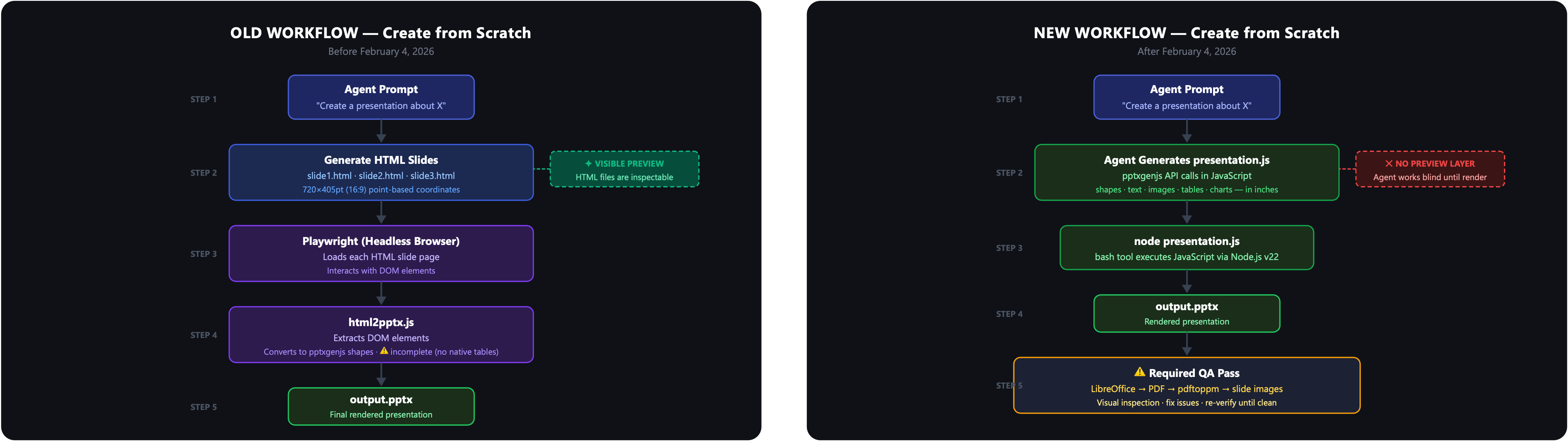
Agents used Playwright, a headless browser automation tool to load each HTML slide page in a headless browser environment, interact with its DOM elements, and pass them to html2pptx.js for conversion. This approach gave agents a visible intermediate layer: the HTML files could be inspected before the final render, providing a built-in visual feedback opportunity. This approach was particularly useful for creating new presentations, as it allowed agents to easily reason about the structure of the slides using familiar HTML tags and styles, and provided a visual checkpoint before generating the final PowerPoint file.
However, the abstraction was incomplete. html2pptx.js did not natively support all element types. For example, it had no native table rendering. In my own project, SlideWeaver, I had to write additional functions for table element extraction and validation to fill this gap.
2.2. Editing Existing PowerPoint Presentations with Open Office XML (ooxml)
For editing existing PowerPoint presentations, the Open Office XML (ooxml) approach was used. PowerPoint files are essentially ZIP archives containing various XML files representing slides, layouts, themes, and media. By directly manipulating these XML files, agents could modify specific elements of an existing presentation without regenerating the entire file.
The workflow required the agent to read a detailed ooxml.md reference guide (approximately 500 lines) in full before making any edits. The editing steps were:
- Unpack the presentation:
python ooxml/scripts/unpack.py <file> <output_dir> - Edit the XML files (primarily
ppt/slides/slide{N}.xml) - Validate immediately after each edit:
python ooxml/scripts/validate.py <dir> --original <file> - Pack the final presentation:
python ooxml/scripts/pack.py <input_dir> <output_file>
The validate-after-every-edit discipline was critical. Errors in XML structure could silently corrupt the output file if left unchecked.
3. What Changed in the New PowerPoint Skill
The new PowerPoint skill, released on February 4, 2026, underwent a significant restructuring into three clearly separated paths: reading/analyzing content, editing from a template, and creating from scratch.
3.1. Reading / Analyzing Content
This path remains largely unchanged. Agents use the same tools to extract text and visual information from existing PowerPoint files:
python -m markitdown presentation.pptx  # text extraction
python scripts/thumbnail.py presentation.pptx  # visual overview
python scripts/office/unpack.py presentation.pptx unpacked/  # raw XML
There are no changes to the tools or instructions in SKILL.md for this path, and the ooxml/ code for unpacking and analyzing XML files remains intact. The only difference is that this path is now more clearly delineated as a separate step in the overall workflow, rather than being intertwined with the editing and creating paths.
3.2. Creating from Scratch with pptxgenjs
The most significant change is the removal of the HTML intermediary layer in the creation process. Instead of generating HTML files and using Playwright as a bridge to convert them to PowerPoint, the agent now directly generates a JavaScript file that calls the pptxgenjs API to construct the presentation. pptxgenjs.md serves as a detailed reference for how to use the library effectively, including important gotchas and best practices. It covers topics such as slide dimensions, color formatting, text styling, and the various shape types supported by pptxgenjs. The instructions emphasize the importance of following specific conventions to avoid file corruption and ensure that the generated PowerPoint files are valid and render correctly.
By providing a comprehensive reference for pptxgenjs, the new skill can create tables and charts directly through code, which was not natively supported in the old html2pptx approach. This allows for more complex and dynamic presentations to be generated from scratch without relying on an HTML intermediary, which was a significant limitation in the previous version.
This change also eliminated the need to build custom extensions for unsupported elements, as I had to do with table support in SlideWeaver. Now, agents can directly call pptxgenjs functions to create tables, charts, and other complex elements without needing to extract them from an HTML representation first. This is a significant improvement in terms of flexibility and capability for creating rich PowerPoint presentations from scratch.
However, the tradeoff is that the agent is now working without a visual checkpoint until the final render. In the old approach, agents could inspect the generated HTML files to verify the structure and content of each slide before converting them to PowerPoint. With the new approach, agents must rely on code correctness and thorough testing to ensure that the generated JavaScript produces the desired output, as there is no intermediate visual representation to catch errors before rendering the final PowerPoint file. This is why the new skill places heavy emphasis on QA, including converting the output to images via LibreOffice + pdftoppm and using a dedicated visual inspection pass to catch any issues before finalizing the presentation.
I was able to verify this directly. Claude's response to a prompt asking it to create a PowerPoint presentation using the new skill included JavaScript code that directly calls the pptxgenjs API to construct the presentation. The environment running the skill has Node.js v22.22.0 and pptxgenjs 4.0.1 installed globally, allowing the agent to execute the generated JavaScript code and produce a valid PowerPoint file without needing an HTML intermediary layer.
3.3. Editing from a Template
The editing path remains OOXML-based but is now much more structured, documented in a dedicated editing.md file. The 7-step workflow is:
- Analyze the template —
thumbnail.pyfor visual layout overview,markitdownfor text content - Plan slide mapping — choose which template slides to reuse, actively vary layouts
- Unpack —
python scripts/office/unpack.py template.pptx unpacked/ - Restructure — delete, duplicate, and reorder slides by editing
ppt/presentation.xml(agent only, no subagents) - Edit content — update text in each
slide{N}.xml(subagents can work in parallel here) - Clean —
python scripts/clean.py unpacked/ - Pack —
python scripts/office/pack.py unpacked/ output.pptx --original template.pptx
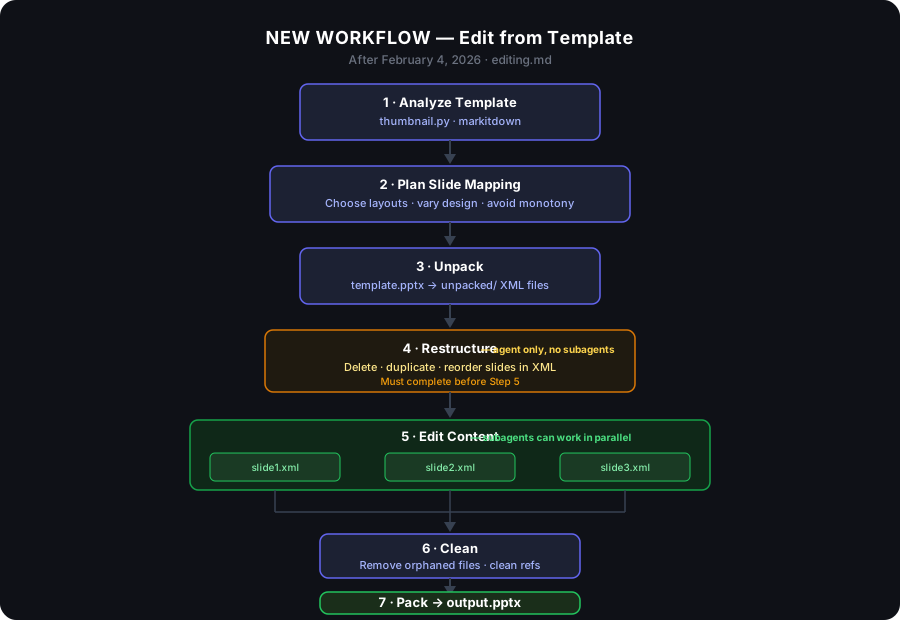
The most architecturally interesting decision here is the structural/content split between steps 4 and 5. Structural changes — deleting, duplicating, reordering slides — must be completed by the primary agent before any content editing begins. Once that's done, content editing can be parallelized across subagents because each slide is a separate XML file. This is a meaningful performance win for large decks.
Common pitfalls documented in editing.md include: removing entire element groups (not just text) when template slots outnumber source items, using separate <a:p> elements for multi-item content rather than concatenating into one string, and using XML entities for smart quotes since the Edit tool converts them to ASCII.
4. My Thoughts on the New PowerPoint Skill
Overall, I think the new PowerPoint skill is a significant improvement over the old version. The separation of concerns between reading, editing, and creating is much cleaner and makes it easier to reason about each part of the workflow. The subagent parallelization for slide editing is a meaningful performance win for large decks, as it allows for faster processing of multiple slides simultaneously.
However, the loss of the HTML preview layer in the creation path means a loss of a feedback opportunity for the agent, as it is working blind until the final render. This can lead to more trial and error in getting the slide layouts right, which is why the new skill puts heavy emphasis on QA, including converting the output to images via LibreOffice + pdftoppm and using a dedicated visual inspection pass (ideally with a subagent that has "fresh eyes") to catch any issues before finalizing the presentation.
4.1. Quality Assurance (QA) is More Important Than Ever
In the new skill, QA is explicitly required, not optional. The SKILL.md states it plainly: "Your first render is almost never correct. Approach QA as a bug hunt, not a confirmation step."
The verification loop is:
- Generate slides
- Convert to images:
soffice --headless --convert-to pdf output.pptx→pdftoppm -jpeg -r 150 output.pdf slide - Visual inspection — check for overlapping elements, text overflow, low contrast, orphaned placeholders
- Fix issues
- Re-verify affected slides — one fix often creates another problem
- Repeat until a full pass finds nothing new
The skill recommends using subagents for visual inspection specifically because the primary agent has been staring at the code and will see what it expects rather than what's actually there. Subagents bring fresh context.
There's also a placeholder text check built into the workflow:
python -m markitdown output.pptx | grep -iE "xxxx|lorem|ipsum|this.*(page|slide).*layout"
If that grep returns results, the presentation is not done.
4.2. The New Skill is More Robust and Flexible
The new skill is designed to be more robust and flexible, with better documentation and clearer instructions for both the primary agent and any subagents involved in the process. The separation of concerns between reading, editing, and creating allows for more focused development and optimization of each part of the workflow. The use of pptxgenjs directly for creation from scratch allows for more complex and dynamic presentations to be generated without relying on an HTML intermediary layer, which was a significant limitation in the previous version.
This changed has enabled better parallelization of tasks, particularly in the editing path where structural changes are separated from content edits. This allows for faster processing of large decks, as multiple subagents can work on different slides simultaneously once the structure is finalized.
4.3. Design Opinion is Now Encoded in the Instructions
Design is a critical aspect of creating effective PowerPoint presentations, and the new skill explicitly encodes design principles into its instructions. This goes beyond just providing tools for creating slides. It includes guiding the agent to make design choices that lead to visually appealing and engaging presentations.
Some aesthetic standards encoded in the instructions include:
- Anti-monotony principle: The skill warns against monotonous presentations and encourages agents to actively seek out varied layouts, such as multi-column, full-bleed images, quote slides, stat callouts, and icon grids, rather than defaulting to title + bullets on every slide.
- Color palette guidance: The skill provides 10 named color palettes and instructs agents to choose colors that feel designed for the specific topic, rather than using generic blue. The rule about swapping colors into a completely different presentation still working is a clever way to encourage specific and intentional color choices.
- Avoiding AI-tell patterns: The instruction to never use accent lines under titles is a direct attempt to steer agents away from visual clichés that are commonly associated with AI-generated slides. By embedding these design principles into the instructions, the skill is not just teaching agents how to use the tools, but also how to make design choices that lead to better presentations. This is a significant step towards creating more human-like and visually appealing outputs from AI agents.
5. Conclusion
The February 2026 update to Anthropic's PowerPoint skill represents a meaningful architectural shift. It simplifies the slide creation process and allows for more complex presentations to be generated from scratch. The separation of concerns between reading, editing, and creating is much cleaner and makes it easier to reason about each part of the workflow. The subagent parallelization for slide editing is a meaningful performance win for large decks, as it allows for faster processing of multiple slides simultaneously.
This blog post has showcased how skills can evolve over time based on trial and error, and how design principles can be encoded into the instructions to guide agents towards creating better outputs. The new PowerPoint skill is a significant improvement over the old version, and it will be interesting to see how it continues to evolve in the future as agents become more sophisticated and capable of handling even more complex tasks.
If you are keen to build on top of this skill or create your own, I highly recommend reading through the SKILL.md and related documentation in the anthropics/skills repo. The instructions and reasoning behind the workflows provide valuable insights into how to effectively use the tools and design principles to create high-quality outputs with AI agents.
Further Reading
- Agent Skills
- anthropics/skills on GitHub
- SlideWeaver — my project built on the old html2pptx pipeline